AmplifyAI

AmplifyAI is Mercer’s multimodel generative AI access platform.

Get started

  1. Go to mercer.cr8.io.
  2. Sign in with your Mercer credentials and complete MFA when prompted.
  3. On your first sign-in, review and acknowledge the required terms and conditions. You will see the acknowledgement again only if the terms change.
  4. Start a new conversation and choose from the models available to you.

Ready to begin?

AmplifyAI is available for students and employees.

Go to AmplifyAI

Guides and resources

Choose the format that fits what you need. These resources are designed to be short, practical, and easy to revisit.

Guides

Each step-by-step guide is available as a PDF or as a short video.

Logging into AmplifyAI and Using the Home Screen
PDFVideo
Choosing an AI Model to Use
PDFVideo
Chatting and Conversations Using AmplifyAI
PDFVideo
Creating and Using Artifacts Using AmplifyAI
PDFVideo

Downloadable PDFs

Additional quick-reference resources you can save or print.

User Manual

Use the full manual for detailed instructions, screenshots, troubleshooting, and feature explanations.

Open User Manual

Using AmplifyAI efficiently

Mercer has selected a set of efficient, lower-cost models for university work. Model choice, reasoning level, web search, conversation length, and the amount of material you upload can all affect usage and affect your rate limit.

Current models

All current launch models display a green dollar-sign indicator in AmplifyAI.

$Claude Sonnet 4.6
$Gemini 2.0 Flash
$GPT-5.6 Luna
$GPT-4.1 Mini
$GPT-4o Mini
$GPT-5 Nano
$GPT-5 Mini
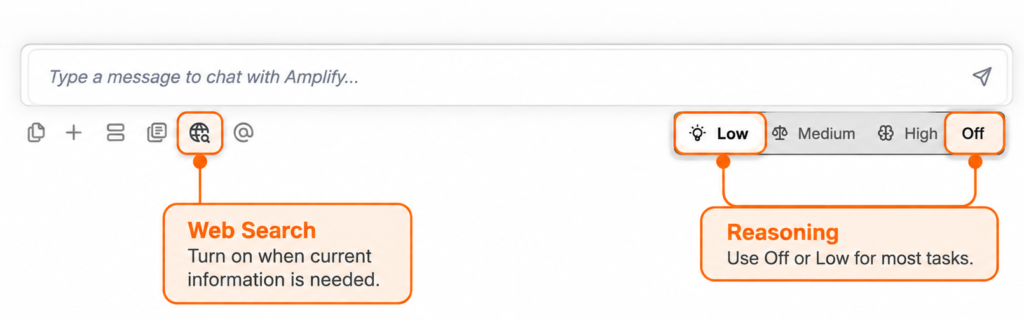
Keep reasoning on Off or Low for most tasks
Off or Low should be used for almost all everyday work, including writing, summarizing, brainstorming, planning, document review, study support, and most routine analysis.Medium and High use additional computing resources and may cause users to reach their chat limits faster. Reserve them primarily for unusually complex multi-step problems, especially advanced mathematics or difficult coding.

Turn on Web Search only when you need it
Select the globe icon beneath the prompt window to turn Web Search on. Leave it off when you do not need current web information. This is more cost efficient and allows the model to work from its built-in training knowledge.
Reasoning and web search icons in AmplifyAI
Reasoning and web search icons

Images and files

AmplifyAI is not intended for image creation. It is primarily used for analyzing images and other uploaded content. Simple image creation is available only through GPT-5.6 Luna.

Image analysis
All models can analyze images supplied in a conversation. Confirm small text, numbers, and other high-stakes details yourself.
Simple image creation
GPT-5.6 Luna is the only model that supports simple image creation. The other models do not create images but can analyze uploaded images.

For files, upload only what the task actually needs. Avoid unnecessarily large files. If a file is not recognized, wait for the upload confirmation, mention the filename in your prompt, reattach it, remove password protection, or convert a scanned PDF to searchable text.

Usage limits

Daily limits
Daily limits operate on a 24-hour usage cycle. If you reach the daily limit, access resumes when the next 24-hour cycle becomes available.
Rolling 30-day limits
The system considers usage during the previous 30 days rather than resetting on the first day of each month.

Most users receive standard access with rate limits. Users whose academic or professional work requires substantially greater or more advanced AI uses may be assigned to an advanced-use group with higher limits, pending justification and funding.

To use AmplifyAI efficiently and avoid reaching your chat rate limit:

  • Keep reasoning on Off or Low for most tasks.
  • Leave Web Search off when current web information is unnecessary.
  • Use short conversations rather than very long unrelated threads.
  • Save uploaded files to the Amplify File Manager when you may need them again. Saved files can be analyzed later, so repeated uploads of the same files are unnecessary.
  • Upload only the files and material needed for the task.
  • Use assistants or prompt templates for repeated tasks.
  • Verify important facts, citations, calculations, quotations, policies, and dates before using the result.

Live workshops

Register for a live session for guided practice and questions. Replace the placeholder dates and links below with the final schedule.

DATE · TIME
Getting Started with AmplifyAI

Register

DATE · TIME
Prompting and Working Efficiently with AI

Register

DATE · TIME
Building Your First Amplify Assistant

Register

DATE · TIME
Assessment and Academic Integrity

Register

Office hours and consultationsBook a time for individual help with AmplifyAI, prompting, assistants, or a specific workflow.

Book Office Hours