AmplifyAI

AmplifyAI is Mercer’s multimodel generative AI access platform.

Getting Started with AmplifyAI

AmplifyAI is being piloted as Mercer’s secure generative AI platform for faculty, staff, and students. Use it for teaching and learning support, research workflows, office productivity, and custom assistants designed for repeatable tasks.

Start here

  1. Go to mercer.cr8.io.
  2. Sign in with your Mercer University credentials.
  3. Complete multi-factor authentication (MFA) when prompted.

Get help

Use the guide below to route questions to the right support team.

Access or MFA issues

Contact Mercer IT if you cannot log in, MFA is not working, or your account access appears incorrect.

IT Help Desk:
helpdesk.mercer.edu

How-to, assistants, or cost questions

Contact Academic Technology for questions about using AmplifyAI, choosing models, designing assistants, or creating prompt templates.

Academic Technology:
codone_s@mercer.edu

How to use AmplifyAI

AmplifyAI lets you work with multiple large language models and customize how you use them. The left-hand sidebar includes three important features:

  • Assistants: Pre-configured AI helpers designed for specific tasks, such as a course tutor, writing coach, research assistant, or office workflow assistant.
  • Prompt Templates: Saved starting points for repeated prompts, such as summarizing readings, drafting feedback, creating discussion questions, or preparing meeting notes.
  • Custom Instructions: General guidance the AI should follow across your chats, such as tone, role, preferred format, or recurring context.

Tip for faster responses: To speed up response generation, go to Settings and unselect Smart Focused Messages. This setting must be changed by each user in their own account.

Choosing a model

If you are unsure which model to use, start with GPT-5. You can switch models at any time.

Simple rule of thumb

  • Not sure? Use GPT-5.
  • Need careful reasoning or explanation? Try Claude 4 Sonnet or o3 mini.
  • Need something fast? Try GPT-4o mini or Claude Haiku.
  • Working with uploaded documents or structured content? Try GPT-4o.
View model guide

GPT-5

Use GPT-5 for most work, including writing, analysis, coding, explanation, and complex reasoning.

Claude 4 Sonnet

Use Claude 4 Sonnet when you want careful reasoning, academic-style synthesis, structured explanations, or logic-heavy analysis.

Claude Haiku models

Use Claude Haiku models when speed matters more than depth. These are useful for quick drafts, short rewrites, summaries, and lightweight coding help.

GPT-4o

Use GPT-4o for document-heavy work, complex text, tables, structured content, and rapid back-and-forth problem solving.

GPT-4o mini

Use GPT-4o mini for fast, routine, lower-stakes work such as summaries, outlines, and brainstorming.

GPT-5 Mini

Use GPT-5 Mini when you want GPT-5–level quality with more speed for well-defined writing, editing, and larger-context tasks.

o3 mini

Use o3 mini for math, logic, STEM-style problems, and tasks that benefit from explicit analytical steps.

About additional models

Some users may later receive access to additional models designed for specialized work, such as advanced research, large-scale analysis, or software development. When appropriate, custom groups may be created for users who need higher-powered models for research or coding. Guidance will be provided on when and why to use those models.

Prompting that works

Good prompts usually include five components:

  • Instruction: What do you want the model to do?
  • Context: What background information does the model need?
  • Output format: Do you want a list, table, outline, email, rubric, or draft?
  • Role or perspective: Should the model respond as a tutor, editor, instructional designer, project manager, or another role?
  • Constraints and boundaries: What should it avoid, limit, or prioritize?

Example prompt

Act as an instructional designer. Create a discussion board prompt for an undergraduate course. Students are working professionals. The topic is employee development. Provide one main prompt and two follow-up questions. Keep the language accessible and do not ask students to disclose sensitive workplace information.

Using assistants responsibly

Assistants are useful when you have a repeated workflow or a specific instructional purpose. They are especially helpful for course tutors, writing coaches, research helpers, advising support, or office productivity workflows.

Before deploying an assistant, define:

  • Its purpose and audience
  • What sources or course materials it should rely on
  • What it should not do
  • How users should verify its responses
  • How it supports learning without doing the work for students

Faculty who plan to use student-facing assistants should test them with realistic prompts, including prompts that ask the assistant to “just give the answer.” The assistant should redirect students toward thinking, practice, and revision rather than completing graded work for them.

Responsible use, academic integrity, and disclosure

AmplifyAI can support teaching, learning, research, and productivity, but users remain responsible for the work they submit, publish, or share.

  • Verify factual claims, citations, statistics, and quotations against reliable sources.
  • Do not enter sensitive, confidential, or protected information unless you are certain it is appropriate to do so.
  • Students should follow course-level expectations for when AI use is allowed, limited, or prohibited.
  • Faculty should clarify expectations for AI use in assignments, assessments, and student-facing assistants.
  • When AI materially contributes to a draft, analysis, or research workflow, disclose its use when required by the assignment, publication venue, or professional context.

Additional guidance on academic integrity, citation formatting, and disclosure language will be linked here as it becomes available.

Known limitations

All AI models have limitations. Keep the following in mind when using AmplifyAI:

  • Chat history is not the same as memory: You may be able to revisit prior chats, but new chats do not automatically inherit context. If prior context matters, paste it into the new chat.
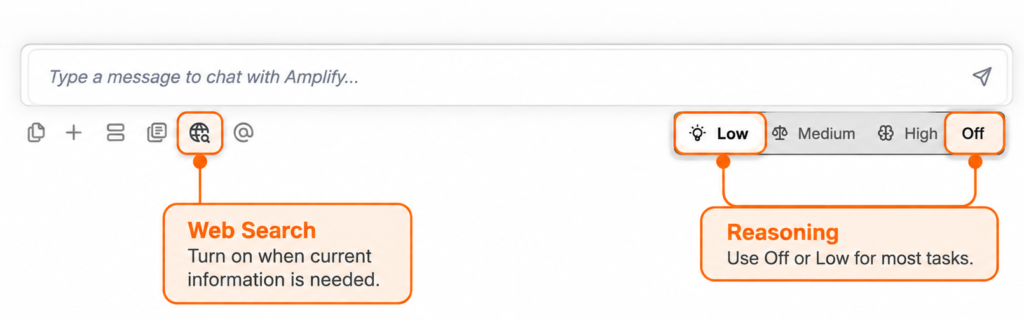
  • Web access varies by model: Some models may support live web search while others rely only on training data and files you provide. Select the appropriate model for current information needs.
  • Hallucinations are possible: AI tools can produce plausible but incorrect information. Always verify facts, citations, quotations, and statistics.
  • File support has limits: Most PDFs, CSVs, and DOCX files are expected to work, but exceptions exist. If a file fails, try a different format or a simplified version.
  • No image creation in AmplifyAI: The platform does not currently support image generation.

Training videos

The following short videos are provided by AmplifyAI.

About AmplifyAI — The Interface

This 10-minute video introduces the platform, model selection, the main interface, and common interaction patterns.

Conversations and Prompt Optimization in AmplifyAI

This 4-minute video explains prompt optimization techniques and common pitfalls in prompt design.

Using Assistants in AmplifyAI

This 4-minute video walks through creating and using assistants inside AmplifyAI.

Using Prompt Templates in AmplifyAI

This 5-minute video focuses on prompt templates and choosing the right model for the right task.

Still need help?

For assistance with AmplifyAI use, assistants, training, or cost questions, contact Susan Codone, Ph.D. at codone_s@mercer.edu.

For login, MFA, or account access issues, contact the Mercer IT Help Desk at helpdesk.mercer.edu or itsupport@mercer.edu.